NCAE MCP Server
The NCAE Model Context Protocol (MCP) server lets supported AI applications use selected NCAE services and reports. For example, a user can ask an MCP client to read a report or start a service instance.
Access is allowed only when all three conditions are met:
- An NCAE administrator has enabled the MCP server for the NCAE installation.
- A user with edit rights has explicitly enabled the individual service or report for MCP.
- The signed-in user has the normal NCAE permissions for that object and action.
How authentication works
Enabling the MCP server creates an OAuth application in NCAE and securely provides its application credentials to the MCP server. These credentials identify the MCP server; they do not identify an individual user.
When a user connects an MCP client, such as Claude Code, the client opens the NCAE sign-in and authorization flow. NCAE issues an access token bound to that user. The MCP client stores the token and uses it for later connections. The MCP server then calls the NCAE API as that user, so users do not share an administrator or service account.
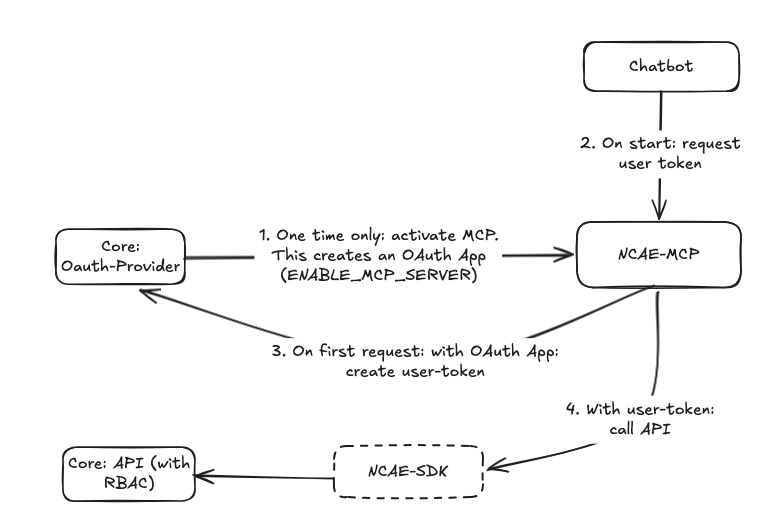
Enable the MCP server
This step requires an NCAE administrator and is performed once for an NCAE installation.
- Open Admin > Configuration.
- Find
ENABLE_MCP_SERVERin the General section. - Select the checkbox and save the configuration.
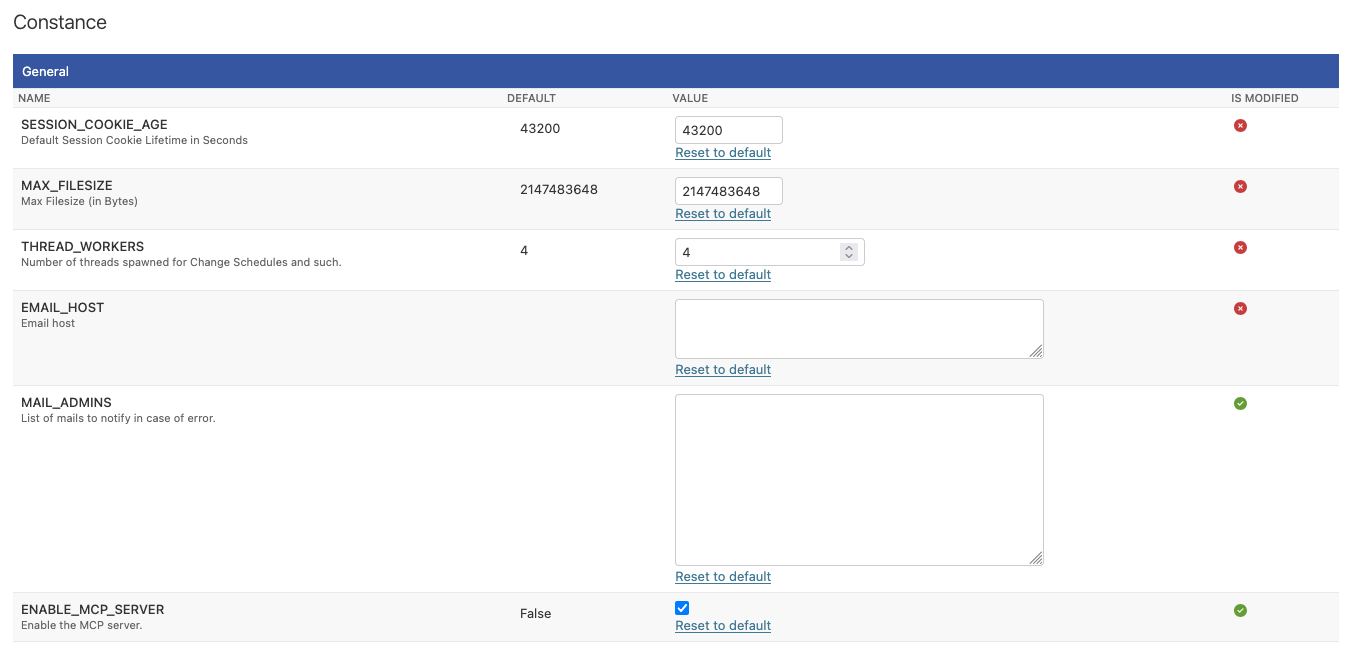
Enabling the setting creates or updates the MCP server’s OAuth application. If the setting is not available, or clients cannot authenticate after it is enabled, ask the NCAE deployment administrator to verify that the MCP server has been deployed and that its public URL is configured correctly.
Expose services and reports
Objects are hidden from MCP by default. Each object must be enabled separately; enabling the MCP server globally does not expose existing objects automatically. The following steps require permission to edit the service or report.
Expose a service
- Open Services and create or edit the service.
- In Basic Settings, select Enable for MCP.
- Save the service.
An MCP user who already has access to the service can then discover it and use it to create a service instance.
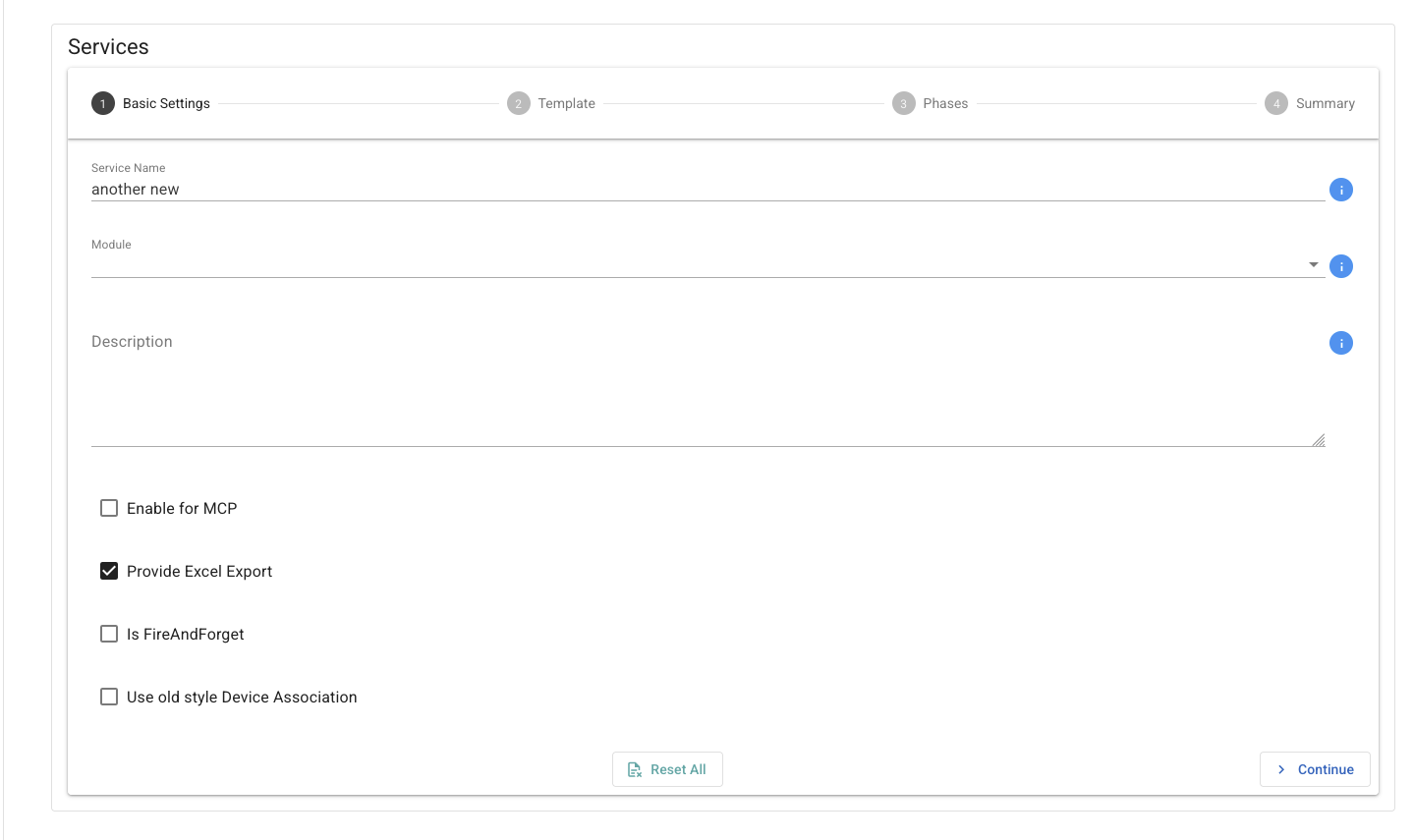
Expose a report
- Open Reports and create or edit the one-time report.
- Select Enable for MCP.
- Save the report.
An MCP user who already has access to the report can then discover and read its report data.
To remove an object from MCP, clear Enable for MCP and save it. This does not delete the object or change its normal NCAE permissions.
Connect Claude Code
Ask your NCAE administrator for the public MCP endpoint. It must end in /mcp, for example
https://ncae-mcp.example.com/mcp.
Add the server to Claude Code for the current user:
claude mcp add --transport http ncae --scope user https://ncae-mcp.example.com/mcpReplace the example URL with the endpoint for your NCAE installation. Then:
- Start Claude Code and run
/mcp. - Select the
ncaeserver and choose Authenticate. - Sign in to NCAE in the browser and approve access.
- Return to Claude Code and confirm that the server is connected.
The server URL may be shared, but each user must complete authentication with their own NCAE account. Do not add a token or password to the command. Claude Code completes the OAuth flow and stores the resulting user credentials.
To verify the saved configuration from a terminal, run:
claude mcp get ncaeSee the Claude Code MCP documentation for other configuration scopes and MCP management commands.
Connect another MCP client
For a client that supports remote HTTP MCP servers and OAuth, add this configuration using the MCP endpoint for your NCAE installation:
{
  "mcpServers": {
    "ncae": {
      "type": "http",
      "url": "https://ncae-mcp.example.com/mcp"
    }
  }
}
The exact location and name of the configuration file depend on the client. After adding the server, start the client’s authentication flow and sign in with your own NCAE account. Clients that do not support OAuth for remote MCP servers cannot connect directly.
Troubleshooting
- The client cannot reach the server: Check the URL, including the
/mcppath. Remote clients normally require an HTTPS endpoint that is reachable from the user’s device. - Authentication is unavailable or fails: Confirm that
ENABLE_MCP_SERVERis enabled and ask the deployment administrator to check the MCP server configuration. - A service or report is missing: Confirm that Enable for MCP is selected on that object and that the signed-in user can access it normally in NCAE.
- The wrong NCAE permissions are used: Disconnect the MCP server in the client and authenticate again with the intended NCAE account.