6 - Module - Reports
Goals
In this task, you will learn how to:
- Create a synchronous report
- Use the reports contents as values for a dynamic dropdown field in a Service
- Pass filter queries from NCAE core to the actual report
Intro
The basics are the same as when creating a new service, but without the JSON bits:
- Extend the
module_deploy.ymlfile to let the Module installation pick up the new report. - Add the report logic to the Python application.
- Expose an API endpoint for this logic, so that the NCAE core may access it.
- Configure a Service in NCAE to access the new report.
A word about sync vs. async
There are two example reports in module_deploy.yml, look them up by name:
- “Manage ExampleSyncReport report”
- “Manage ExampleAsyncReport report”
For this example, the Sync report is used for didactic reasons - it requires a bit less setup. But this
additional setup may well be worth your time when developing a real module. It boils down to adding a Schedule in
NCAE that periodically calls the API endpoint for the async report. The NCAE SDK provides a helper to create
ChangeScheduler objects.
Create a report
Extend the module
Add this snippet to module_deploy.yml:
    - name: Next trains
      ansible.builtin.include_role:
        name: netcloud.ncae.module_setup
        tasks_from: report
      vars:
        module_setup_report_slug: sbb-winterthur-departures
        module_setup_report_args:
          name: Departures from Winterthur
          description: Show the next trains from Winterthur.
          ext_api_service_id: "{{ _manage_python_ext_api.service.id }}"
          path: api/example-collect/v1/trains
          use_collector: false
          send_credentials: true
          cache_time: 60
Create the logic
In extservice/example_collect/api.py, paste this code at the top of the file:
import json
import urllib.request
And below the collect_v1 method:
@extapi_report_route(router, "/v1/trains")
def trains_v1(ctx: ExtApiReportContext) -> ExtApiReportResponse:
    url = "https://transport.opendata.ch/v1/stationboard?station=Winterthur&limit=20"

    with urllib.request.urlopen(url) as response:
        data = json.loads(response.read())
    field_data = [
        {
            "to": entry.get("to"),
            "name": f"{entry.get('to')} - {entry.get('stop', {}).get('departure')}",
            "departure": entry.get("stop", {}).get("departure"),
            "platform": entry.get("stop", {}).get("platform"),
        }
        for entry in data.get("stationboard", [])
    ]
    return ExtApiReportResponse(
        field_names=["to", "name", "departure", "platform"],
        field_data=field_data,
    )
This fetches data from SBB. Inspect
this data in the browser! Only the fields to, name, departure and platform are passed back to the NCAE Core.
Commit, Push, Wait, Update
As in all previous tasks, update the Module and the container in your NCAE.
Once your NCAE instance is updated, check out the new report on the report list:
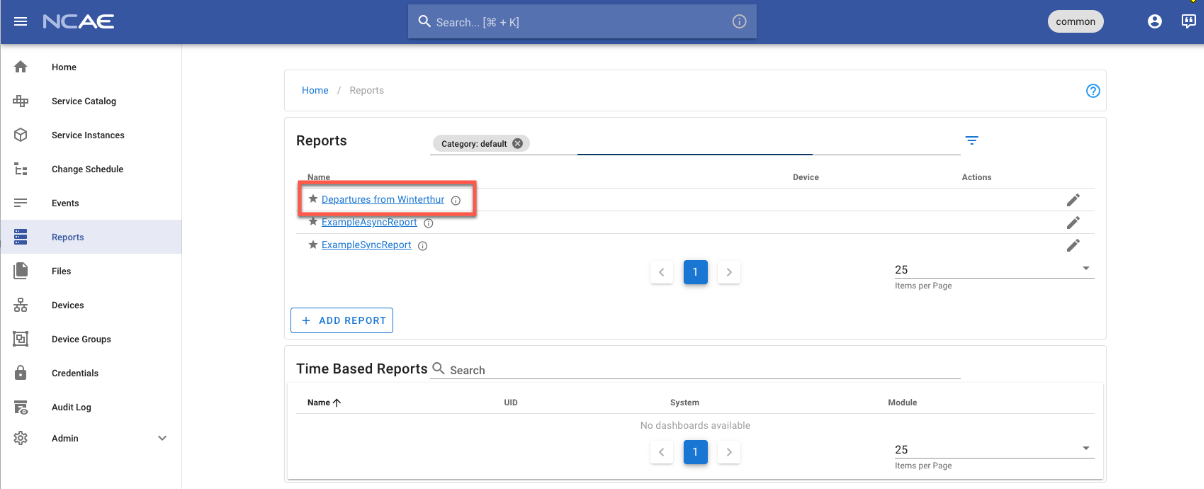
If you refresh the detail page, you will see the caching as defined in the module_deploy.yml: cache_time: 60 (in
seconds).
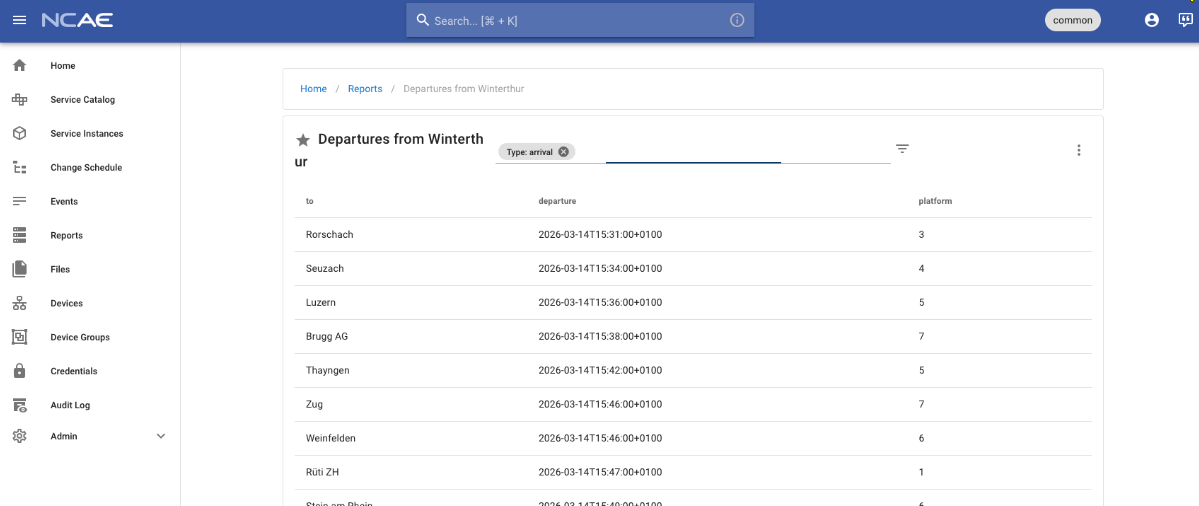
Simply adding a report may be useful, but let’s re-use the report in NCAE to make user inputs a bit easier.
Connect the report to a field in a Service
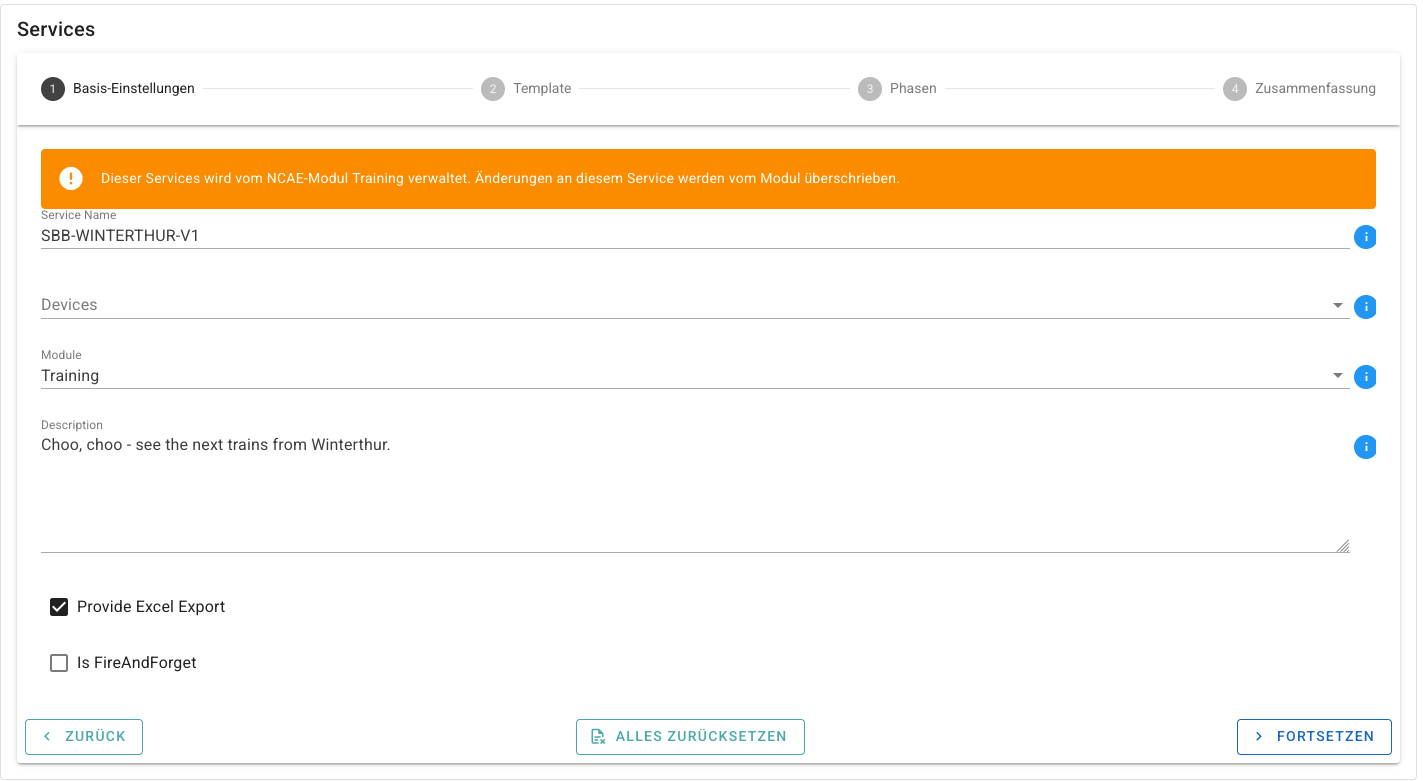
In NCAE Core, create a new Service. On the first step of the wizard, fill in any value you like. For this example, these values are used:
- Service Name: Should be
SBB-WINTERTHUR-V1 - Devices: Should be empty
- Module: Should be
Training - Description: Should be
Choo, choo - see the next departures from Winterthur. - Provide Excel Export: Should be checked
- Is FireAndForget: Should be unchecked
The second step is where it gets interesting. Start by dragging a DynamicDropdownInput to the right, then fill in
the base information:
- Label: Should be
Winterthur - Name: Should be
winterthur - Editable: Should be checked
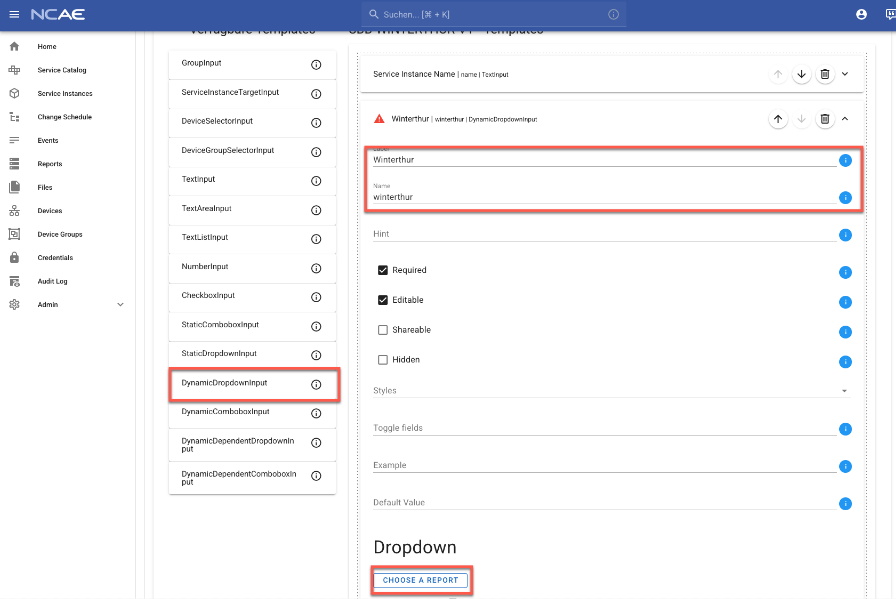
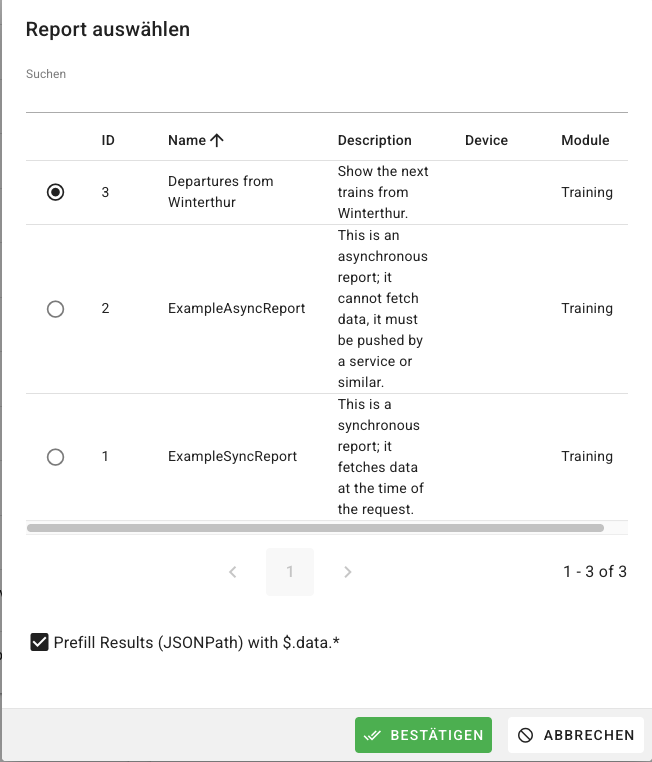
Then, click on Choose a report, and select the new report Departures from Winterthur. The data is now
pre-fetched and helps you to navigate through the next steps:
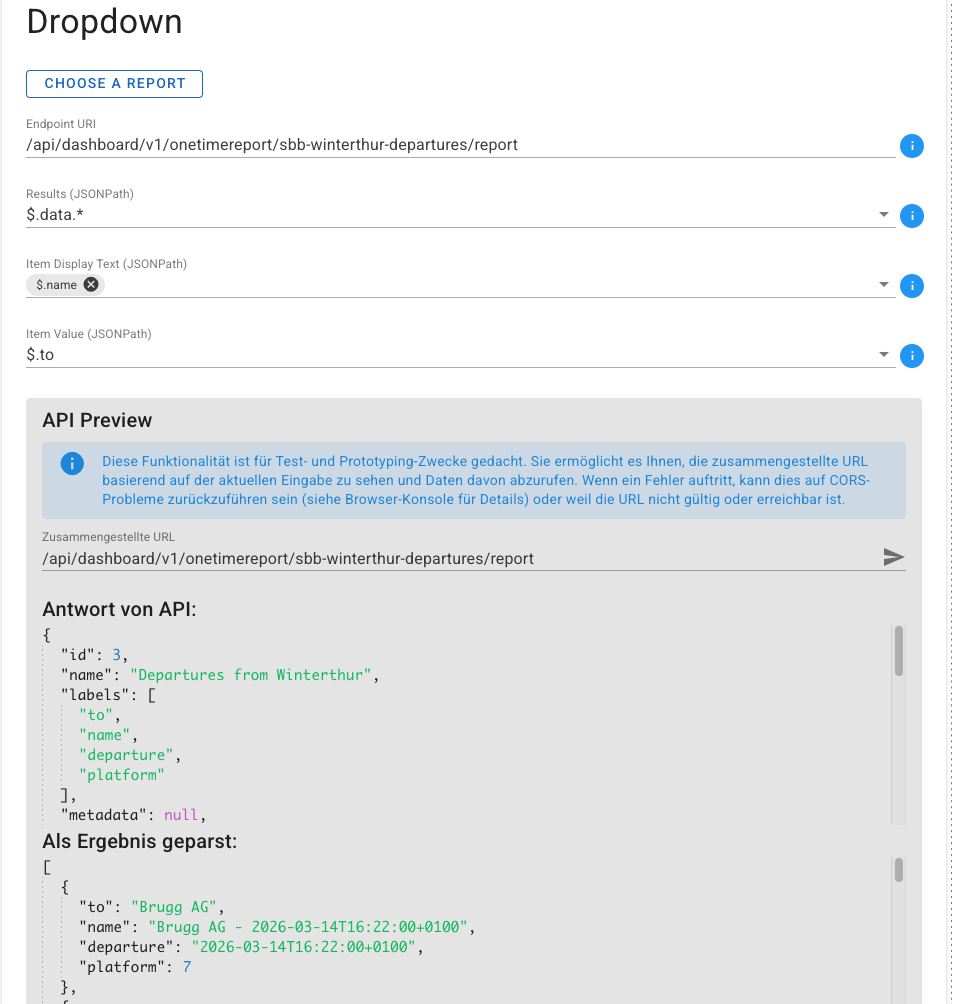
- Endpoint URI: Should be
/api/dashboard/v1/onetimereport/sbb-winterthur-departures/report. This matches theslugyou have configured in themodule_deploy.ymlfile. - Results (JSONPath): Should be
$.data.*. This is needed to match the key of the root element containing the data. - Item Display Text (JSONPath): Should be
$.nameThis is the attribute which is displayed on the “selection” dropdown - Item Value (JSONPath): Should be
$.toThis is the attribute which is stored in the CMDB and is passed to the Module when running the phase - so it should be in the value that you expect for your logic.
The full field should look like this.
Then, hit continue and leave the Phase empty. This is not relevant for this demo; we also do not copy the Service into the Module. If you want to try this, proceed as described in Python Service
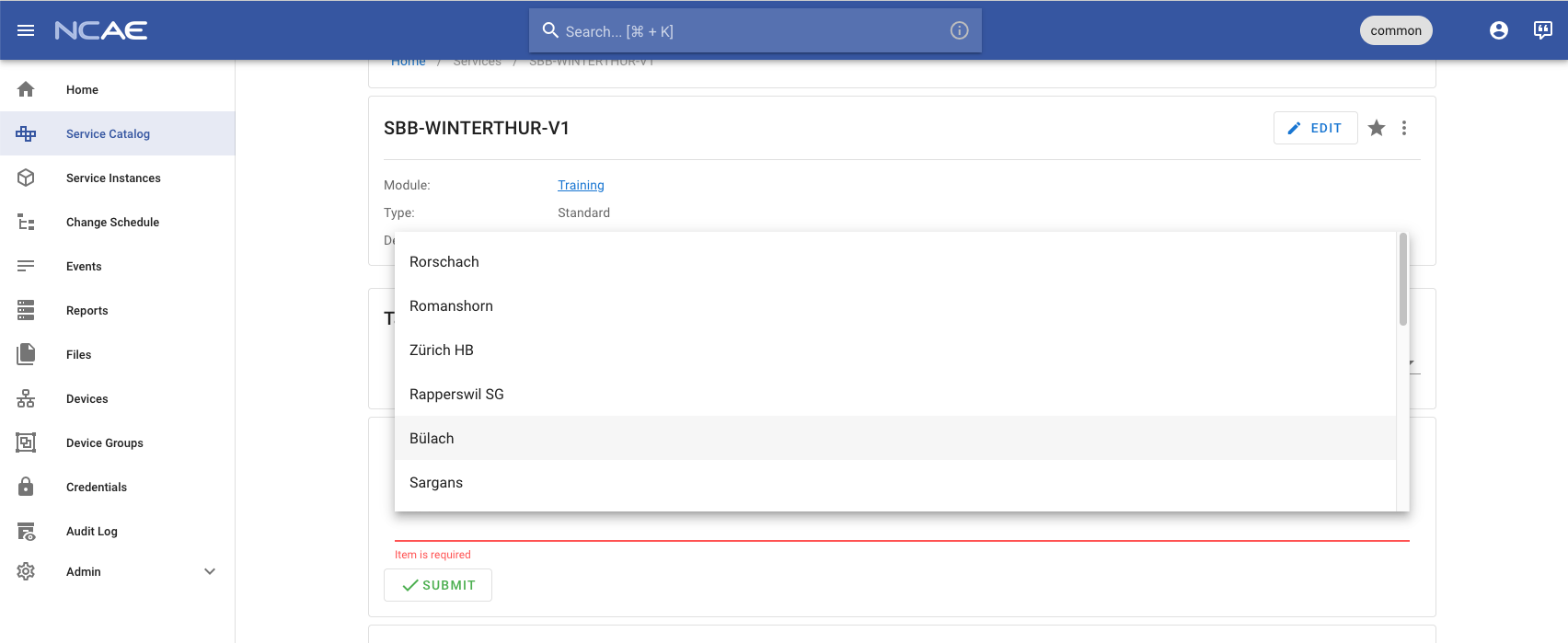
Finally, try out the new field: if fetches reports, and displays values and names as configured 🚀
Sidenote: JSONPath and report data as JSON
The trickiest bits of this is to “match” the configuration (which is mostly JSONPath) and the report. There are some helpers for this.
JSONPath is a standardized approach to parse JSON data, a nice visual representation can be found on jsonpath.com.
This raw report JSON data can be checked in these ways:
- Easiest: click the arrow in the API Preview
- Open the detail report and check the network tab
- Go to the API docs (
https://<your-ncae>/api/docs/) and fill in the slug of your report in the/api/dashboard/v1/onetimereport/{id}endpoint. The direct link is:https://<your-ncae>/api/docs/#/dashboard/dashboard_v1_onetimereport_retrieve
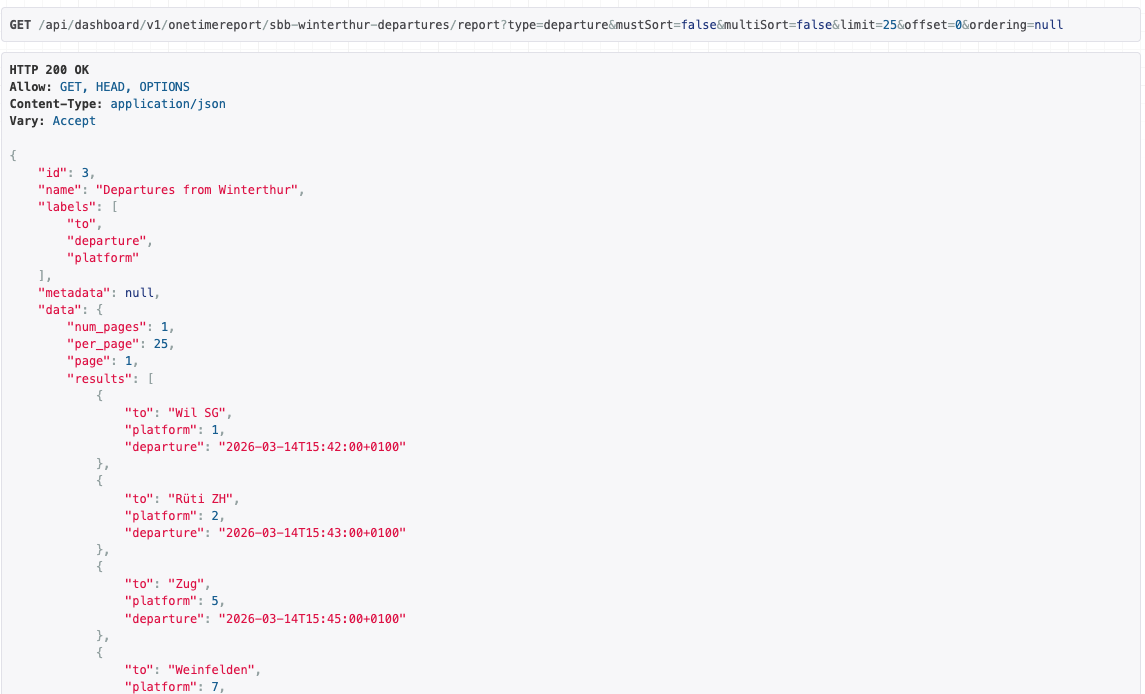
For your reference, this is the raw data of the SBB report:
Stretch goal: pass dynamic filter params
What if the data you collect in the Module requires some kind of filter so that you can fetch the correct data?
Filter parameters can be passed from the synchronous report to the module. All fields provided by the Service editor
can also be used to filter report data. In the report, the field which contains the fields for the filtering is called
template.
Extend the module
The SBB API supports a type filter, which may be arrival or departure. Let’s add a static dropdown with these
values in module_deploy.yml:
    - name: Next trains
      ansible.builtin.include_role:
        name: netcloud.ncae.module_setup
        tasks_from: report
      vars:
        module_setup_report_slug: sbb-winterthur-departures
        module_setup_report_args:
          name: Departures from Winterthur
          description: Show the next trains from Winterthur.
          ext_api_service_id: "{{ _manage_python_ext_api.service.id }}"
          path: api/example-collect/v1/trains
          use_collector: false
          send_credentials: true
          cache_time: 60
          template:
            values:
              - key: "type"
                type: "static_dropdown"
                hint: ""
                required: false
                editable: true
                shareable: false
                hidden: false
                styles: []
                defaultValue: "departure"
                dropdown:
                  values:
                  - "arrival"
                  - "departure"
                label: "Arrival or Departure?"
                name: "type"
In the logic, the parameter must be passed to the call to the SBB API. Note that the “type” is optional, so it is
backward compatible. Image that some service configurations do not provide the type field. If you are the sole
author and user of the report, it’s safe to change it though!
@extapi_report_route(router, "/v1/trains")
def trains_v1(ctx: ExtApiReportContext) -> ExtApiReportResponse:
    direction_type = getattr(ctx.body.query, "type", None)
    url = "https://transport.opendata.ch/v1/stationboard?station=Winterthur&limit=20"
    if direction_type:
        url += f"&type={direction_type}"

    with urllib.request.urlopen(url) as response:
        data = json.loads(response.read())
    field_data = [
        {
            "to": entry.get("to"),
            "name": f"{entry.get('to')} - {entry.get('stop', {}).get('departure')}",
            "departure": entry.get("stop", {}).get("departure"),
            "platform": entry.get("stop", {}).get("platform"),
        }
        for entry in data.get("stationboard", [])
    ]
    return ExtApiReportResponse(
        field_names=["to", "name", "departure", "platform"],
        field_data=field_data,
    )
Update NCAE
Run the commit - push - update loop again, and check your NCAE.
The report now asks for a filter
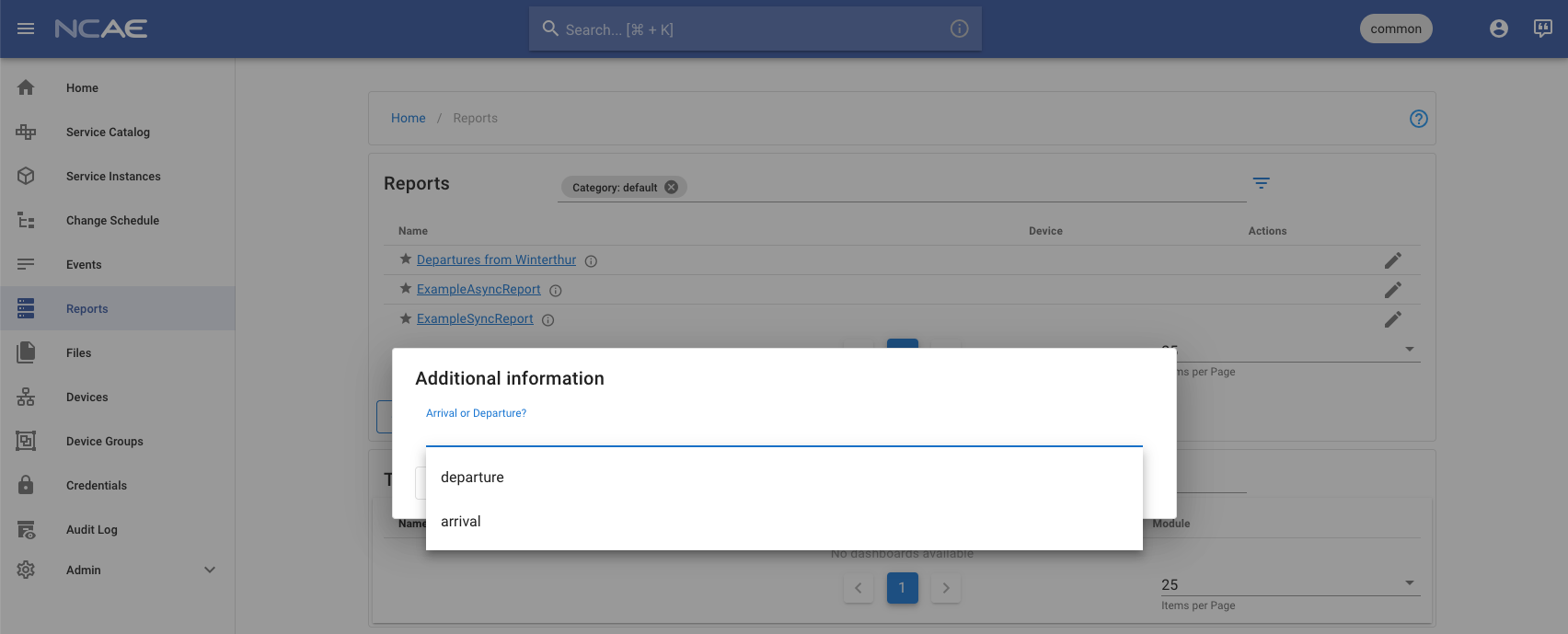
The Service is unchanged, and uses the default (departure).
Summary
In this task, you learned to
- Add a synchronous report.
- Add a service without a Phase.
- Pre-fill values of a dropdown based on a report.