Task 5 - Module Logic
Goals
In this task, you will learn how to:
- Place your domain logic in the correct place
- Update your domain logic
- Run the updated version from NCAE
We will do this example based on a IOSXE Banner Service, which is managing the Message of the day (motd) and the login Banner.
Structure
As a recap - NCAE simply calls URLs, so you could integrate other systems!
As module developers, we provide logic encapsuled in an API. The application serving the API is served as Docker-Image, and installed on the NCAE VM as Kubernetes Service during the initial container image deployment (see Deploy the container image on your NCAE).
The logic is then called from a Phase, by its uri. This is defined in the services/EXAMPLE-PYTHON-SERVICE-V1.json
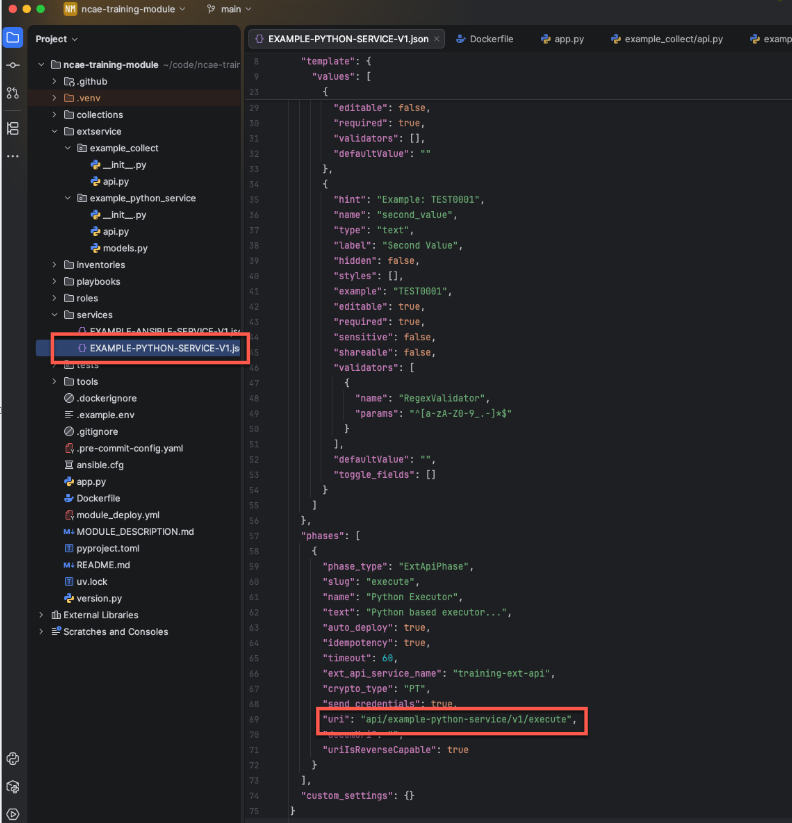
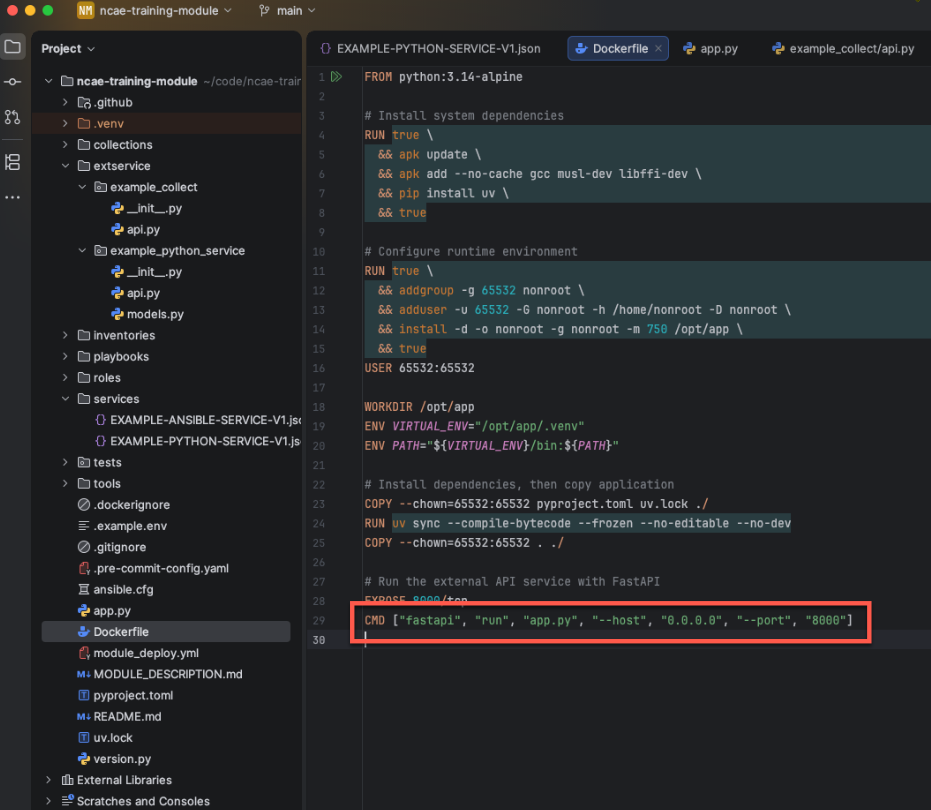
The (Kubernetes) Service runs the Dockerfile provided by the module. In this file, the python application
app.py is served.
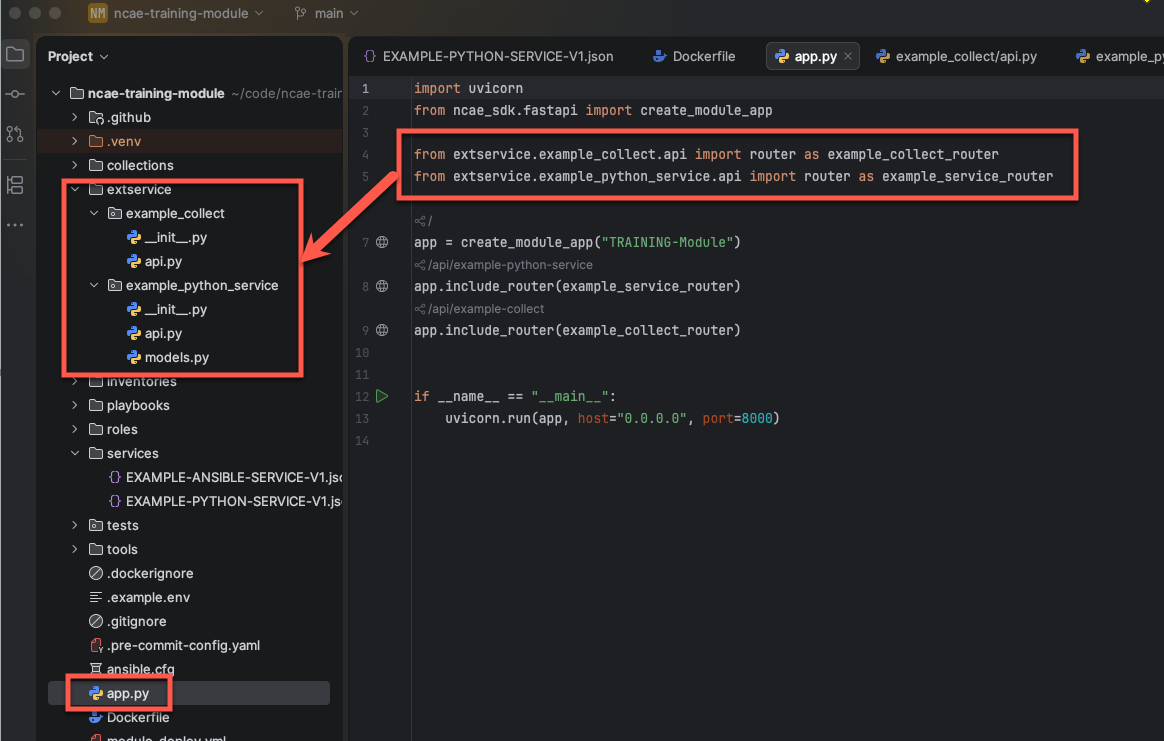
And if we further inspect the app.py, it shows that the python code in the extservice folder is exposed.
Provide your own logic
The quick approach
Add a new file named IOSXE-BANNER-SERVICE-V1.json in the services folder and paste these contents:
{
  "name": "IOSXE-BANNER-SERVICE-V1",
  "description": "This Service is managing the Login Banner",
  "category": "default",
  "excel": true,
  "fire_and_forget": false,
  "module_name": "Training",
  "template": {
    "values": [
      {
        "hint": "",
        "name": "name",
        "type": "text",
        "label": "Service Instance Name",
        "styles": [],
        "editable": false,
        "required": true,
        "validators": [],
        "defaultValue": ""
      },
      {
        "key": "main",
        "hint": "",
        "name": "__targets__/main",
        "type": "service_instance_target",
        "label": "Service Instance Target",
        "hidden": false,
        "styles": [],
        "editable": true,
        "required": true,
        "shareable": true,
        "toggle_fields": []
      },
      {
        "hint": "",
        "name": "motd",
        "type": "text-area",
        "label": "Message of the Day",
        "hidden": false,
        "styles": [],
        "editable": true,
        "required": false,
        "sensitive": false,
        "shareable": false,
        "toggle_fields": []
      },
      {
        "hint": "",
        "name": "banner_login",
        "type": "text-area",
        "label": "Login Banner",
        "hidden": false,
        "styles": [],
        "editable": true,
        "required": true,
        "sensitive": false,
        "shareable": false,
        "toggle_fields": []
      }
    ]
  },
  "phases": [
    {
      "phase_type": "ExtApiPhase",
      "slug": "IOSXE-BANNER-V1-1",
      "name": "IOSXE-BANNER-V1 Phase 1",
      "text": "This Phase is configuring IOS XE Banners",
      "auto_deploy": true,
      "idempotency": true,
      "timeout": null,
      "ext_api_service_name": "training-ext-api",
      "crypto_type": "PT",
      "send_credentials": true,
      "uri": "api/banner-service/v1/execute",
      "decomUri": "",
      "uriIsReverseCapable": true
    }
  ],
  "custom_settings": {}
}
The correct approach
NCAE allows creating, editing and exporting of the Service structure on the frontend. Start by creating a new
Service on the Service list view:
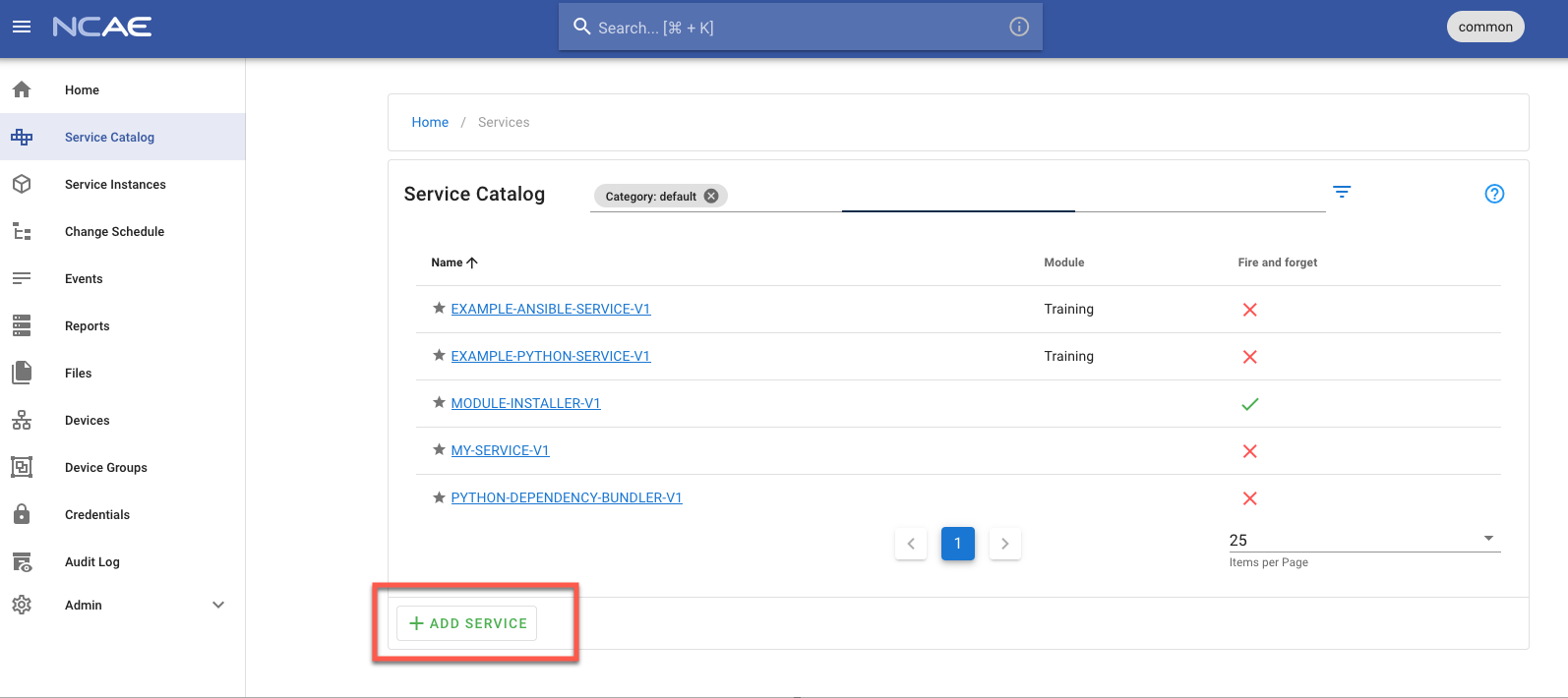
The Service creation/edit wizard starts.
Base
This lets you configure the “base” data of the service. “FireAndForget” Services are supposed to run exactly once, so this should always be un-checked for this training.
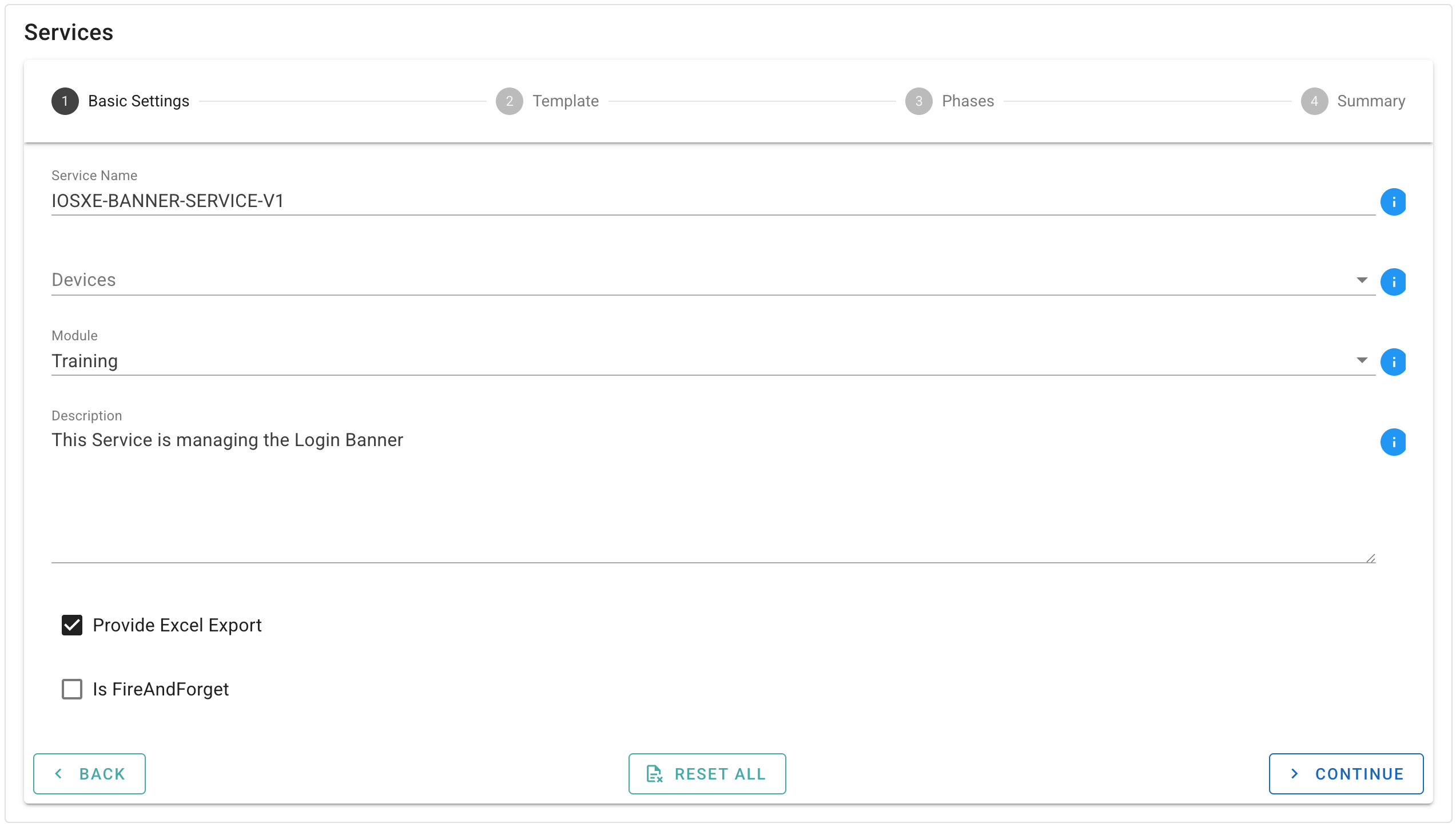
Fill in these fields, and hit “Continue”
- Service Name: Should be
IOSXE-BANNER-SERVICE-V1 - Devices: Should be empty
- Module: Should be
training - Description: Should be
This Service is managing the Login Banner - Provide Excel Export: Should be checked
- Is FireAndForget: Should be unchecked
Template
This is the first important bit: this defines the structure of the data that is submitted. As an example, simply
drag a TextInput into the right area. Hit “Continue” once you are ready.
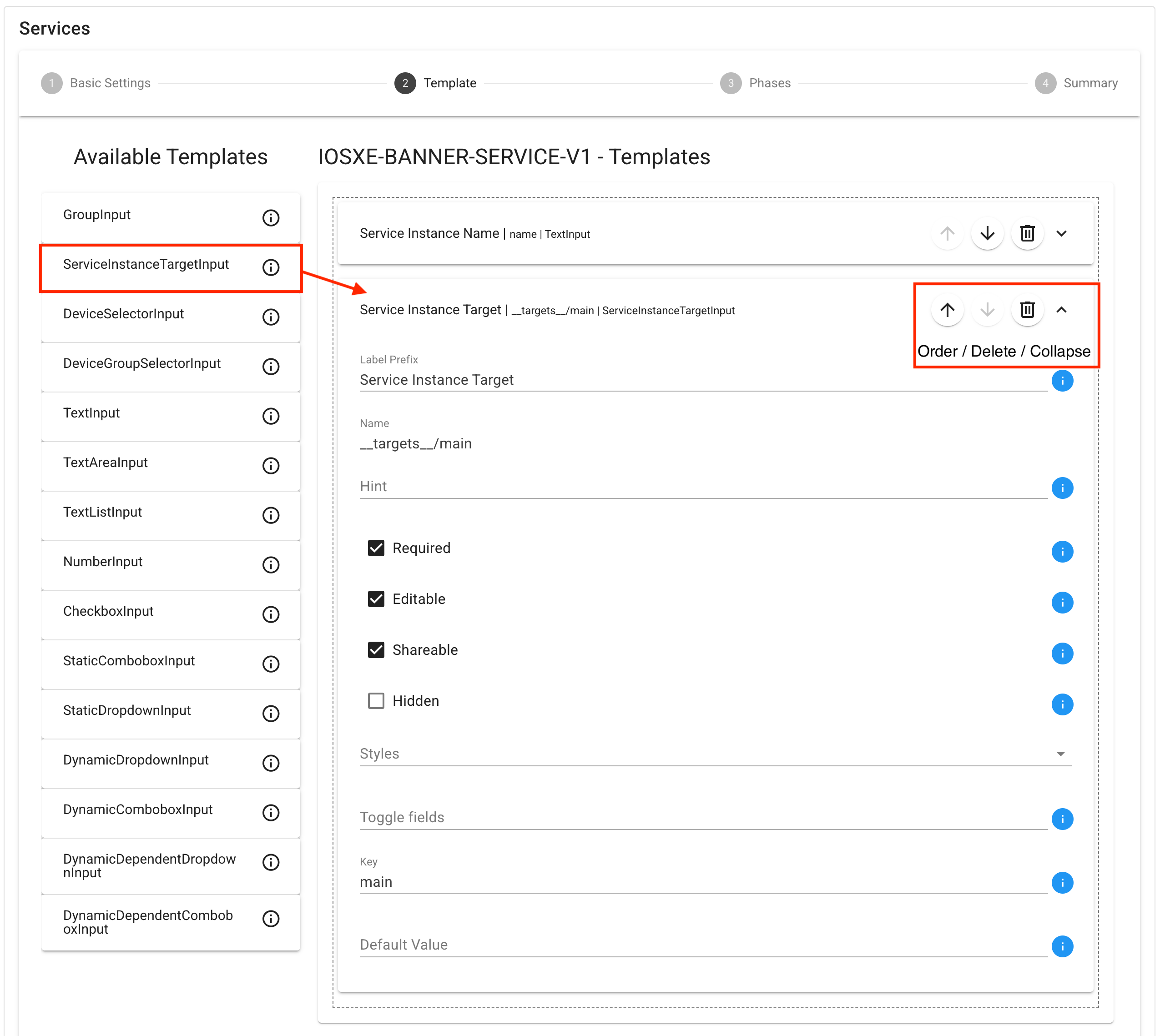
- Service Instance Name: Leave unchanged. You can expand/collapse it.
- ServiceInstanceTargetInput: After dragging it, more context expands. Collapse it again.
- TextAreaInput: After dragging it, more context expands.
- Label: Should be
Message of the Day - Name: Should be
motd - Editable: Should be
checked - Required: Should be
checked - TextAreaInput: After dragging it, more context expands.
- Label: Should be
Login Banner - Name: Should be
banner_login - Editable: Should be
checked - Required: Should be
checked
Phases
NCAE supports multiple phase types - for now, let’s only use “Ext Api Phases”. We will add documentation for the other Phase types soon.
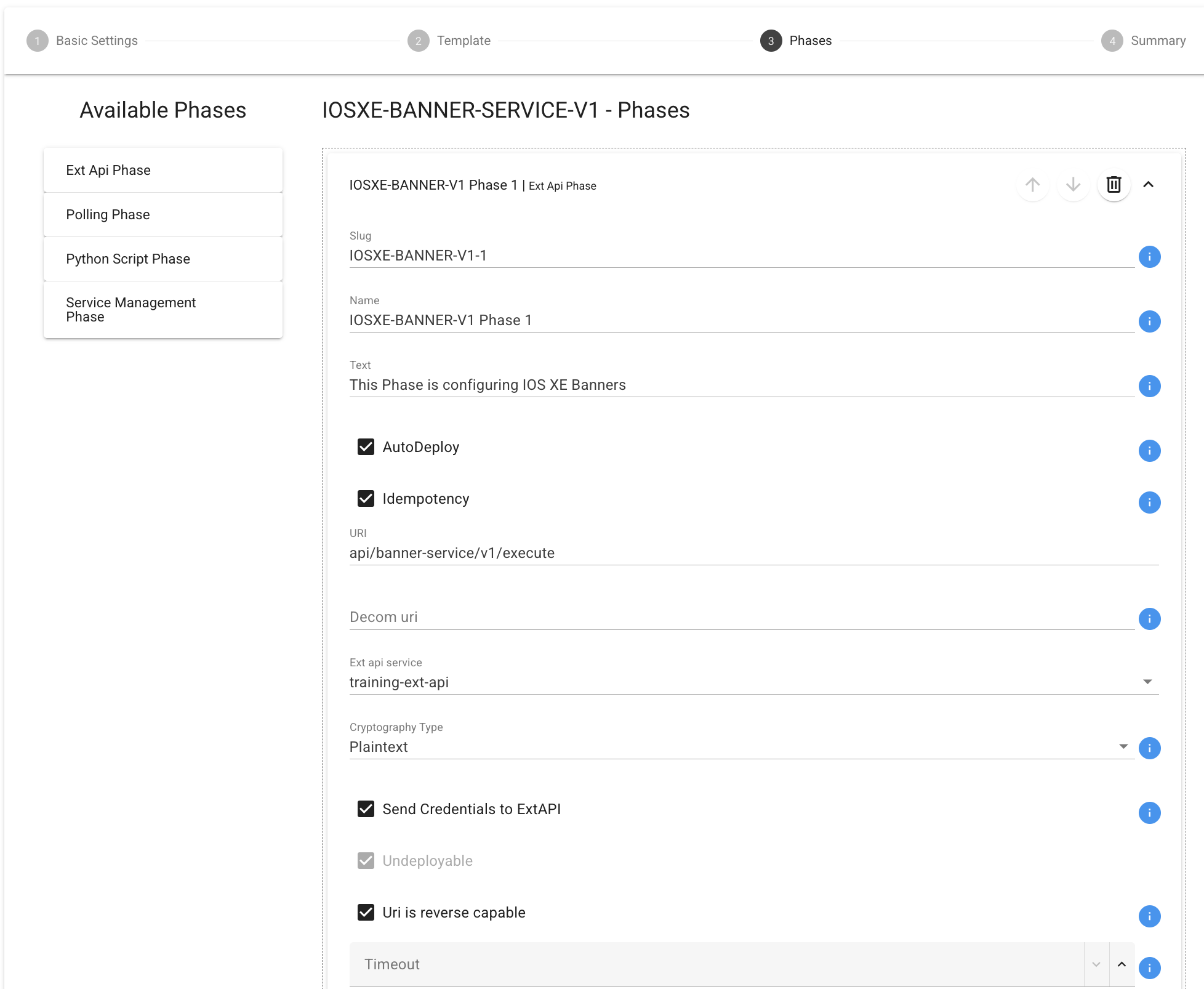
- Slug: Should be
iosxe-banner-v1-1 - Name: Should be
IOSXE-BANNER-V1 Phase 1 - Text: Should be
This Phase is configuring IOS XE Banners - AutoDeploy: Should be checked
- Idempotency: Should be checked
- Send Credential to ExtApi: Should be checked
- URI: Should be
api/banner-service/v1/execute - Exp api service: Should be
training-ext-api - Uri is reverse capable: Should be checked, means for a decom call the same uri will be used!
After this, “Continue” again. On the summary page, click “Create Service”.
Your service is ready
You can now see your first service!
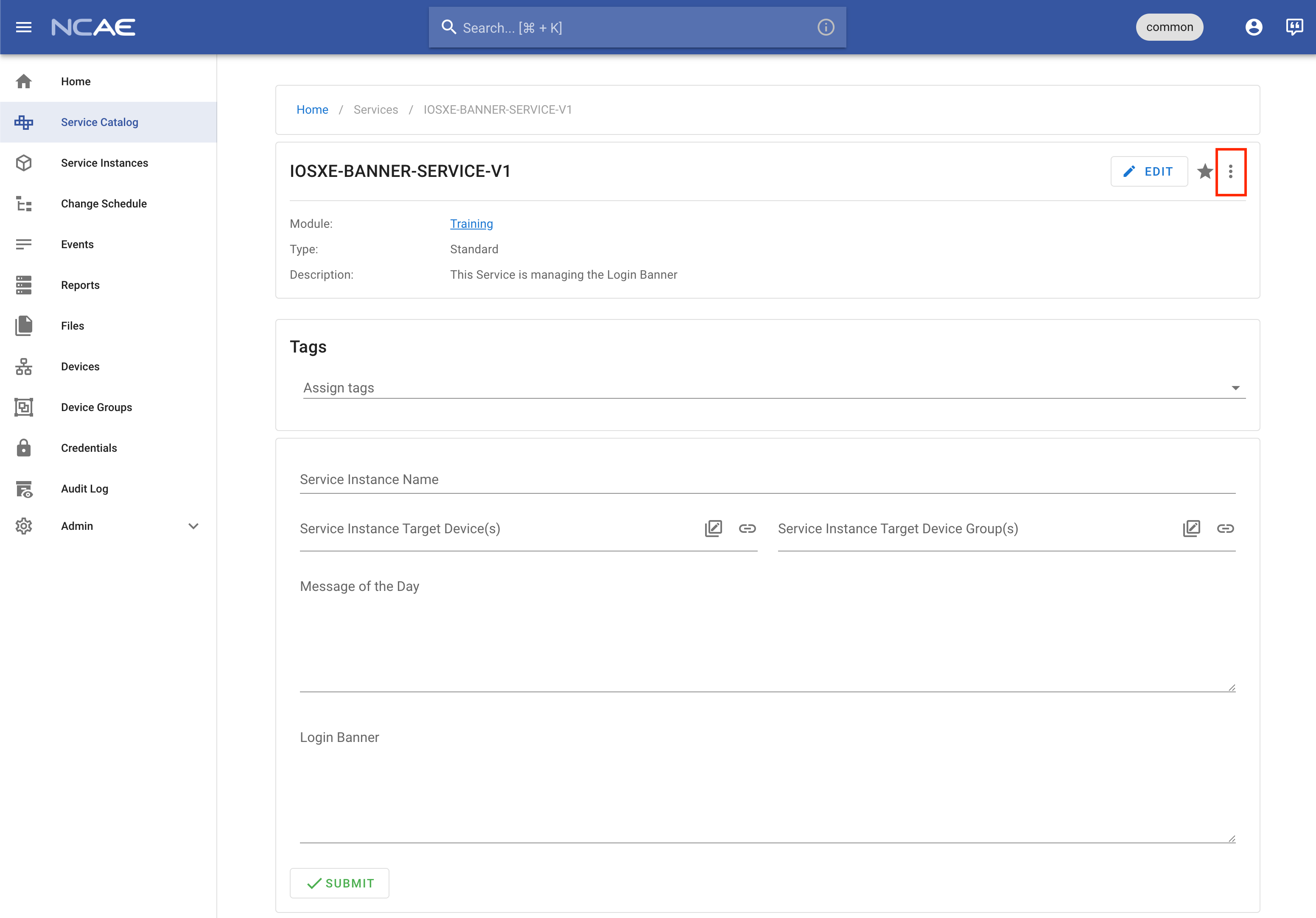
To migrate this data into the module, select “Copy config to clipboard” from the menu with three dots on the top right.
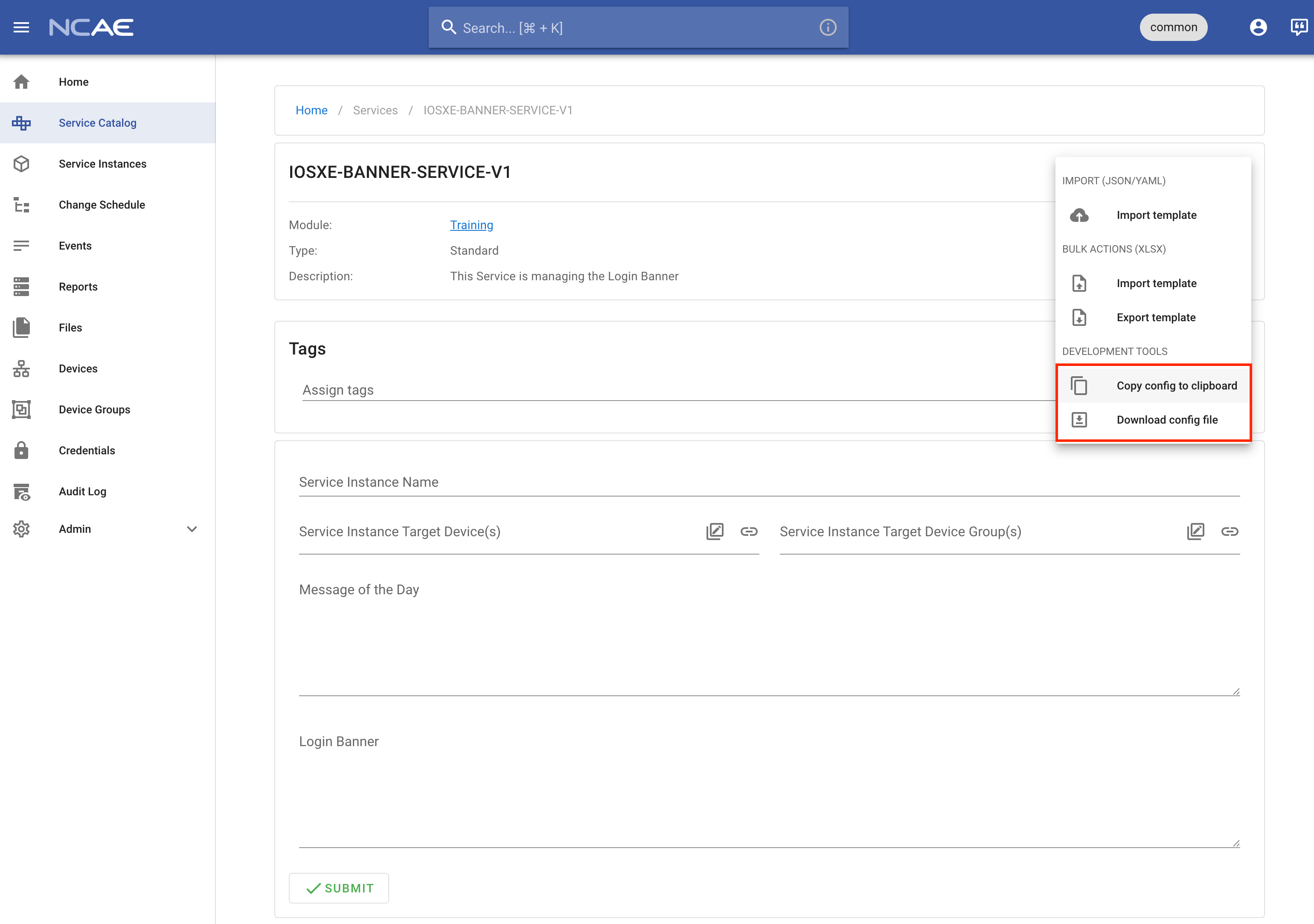
Now, create a new file in the services folder: IOSXE-BANNER-SERVICE-V1.json and paste the contents from your
clipboard. This should exactly match the structure provided above.
But there now is a new API endpoint
The Uri defined as api/banner-service/v1/execute does not yet exist! So let’s add it. Following Steps needs to be
done:
Create a new Python Directory
iosxe_banner_serviceunder the extservice folderA Python Directory is a normal Directory with an empty file in it called
__init__.py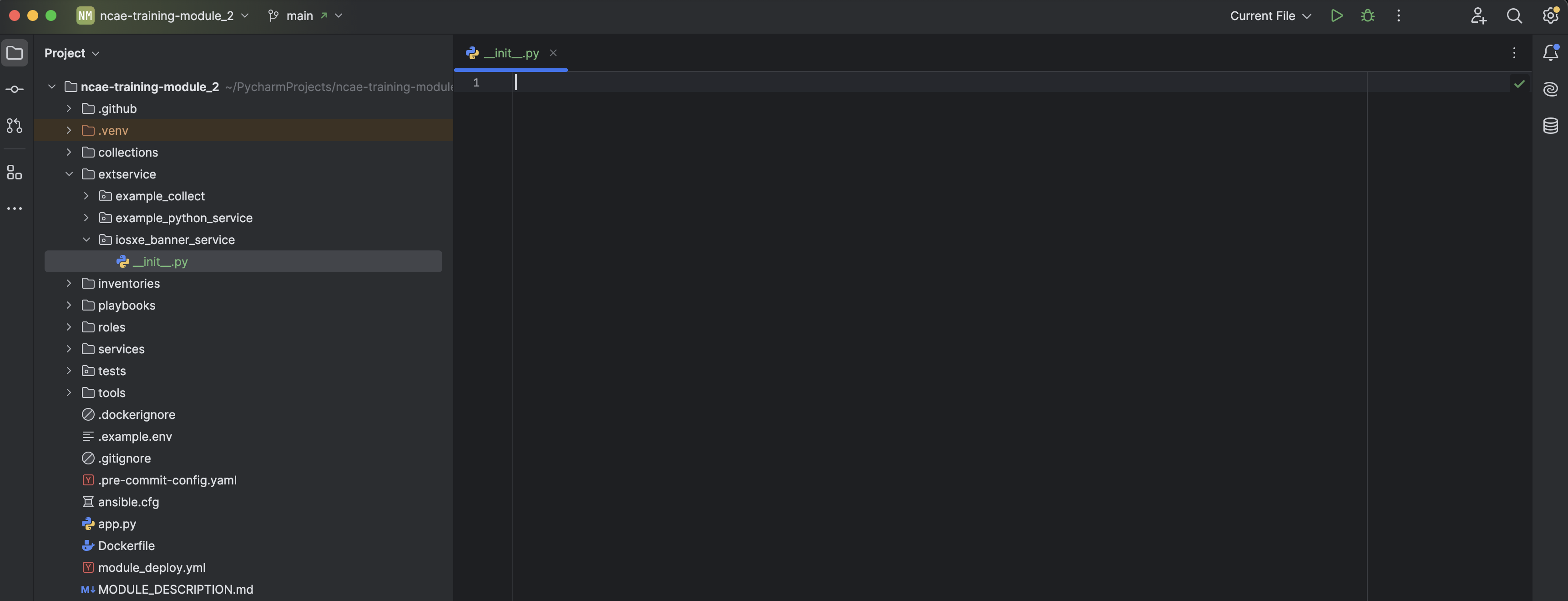 Always confirm to Add the files in Git! Otherwise it will not be included and pushed to Github.
Add a new python file to the iosxe_banner_service (
api.py)Add following Domain Logic to the api.py:
from fastapi import APIRouter
from ncae_sdk.fastapi.extapi import ExtApiPhaseContext, extapi_phase_route
from ncae_sdk.types import PhaseStatus
from netmiko import ConnectHandler
from netmiko.exceptions import NetmikoAuthenticationException, NetmikoTimeoutException
from pydantic import BaseModel

router = APIRouter(
    prefix="/api/banner-service",
    tags=["IOSXE Banner Python Service"],
)


class BannerCmdb(BaseModel):
    name: str
    motd: str
    banner_login: str


# Delimiter used in IOS banner command — must NOT appear in banner text
DELIMITER = "^"


@extapi_phase_route(router, "/v1/execute")
def execute_v1(ctx: ExtApiPhaseContext[BannerCmdb]) -> None:
    ctx.log_info("Python Executor is running. Starting configuring the Banners!")

    if ctx.is_decommission:
        motd = ""
        login = ""
    else:
        motd = ctx.cmdb_data.motd
        login = ctx.cmdb_data.banner_login

    result_dict = {"success_count": 0, "failure_count": 0, "total_count": 0}

    for device in ctx.devices:
        is_completed = configure_banners(
            host=device.host,
            username=device.credential.username,
            password=device.credential.password,
            secret=device.credential.become_password,
            motd=motd,
            banner_login=login,
            ctx=ctx,
        )
        result_dict[device.name] = is_completed
        result_dict["total_count"] += 1
        if is_completed:
            result_dict["success_count"] += 1
        else:
            result_dict["failure_count"] += 1

    ctx.log_info(f"Configuration Completed on {result_dict['success_count']} of {result_dict['total_count']} devices!")

    if ctx.is_decommission:
        ctx.update_phase_status(status=PhaseStatus.RETIRED)
    elif result_dict["failure_count"] == result_dict["total_count"]:
        ctx.log_error("All Devices failed!")
        ctx.update_phase_status(status=PhaseStatus.ERRORED)
    else:
        ctx.update_phase_status(status=PhaseStatus.DEPLOYED)


def configure_banners(
    host: str,
    username: str,
    password: str,
    secret: str,
    motd: str,
    banner_login: str,
    ctx: ExtApiPhaseContext[BannerCmdb],
) -> bool:
    device = {
        "device_type": "cisco_ios",
        "host": host,
        "username": username,
        "password": password,
        "secret": secret,
    }

    try:
        with ConnectHandler(**device) as net_connect:
            # Enter enable mode if an enable secret is set
            if device.get("secret"):
                net_connect.enable()

            commands = [
                f"banner motd {DELIMITER}{motd}{DELIMITER}",
                f"banner login {DELIMITER}{banner_login}{DELIMITER}",
            ]

            # Send Config Commands to the Device
            net_connect.send_config_set(commands)

            # Save configuration
            net_connect.save_config()

            ctx.log_info(f"Banner configured and Config saved on Device: {host}")
            return True

    except NetmikoAuthenticationException:
        ctx.log_error(f"Device: {host} Authentication failed. Check your credentials.")
        return False
    except NetmikoTimeoutException:
        ctx.log_error(f"Connection timed out. Verify {host} is reachable.")
        return False
    except Exception as e:
        ctx.log_error(f"Unexpected error: {e}")
        return False
Include this new Domain Logic into the API. Open the app.py file in the Base Project Directory and add following to lines:
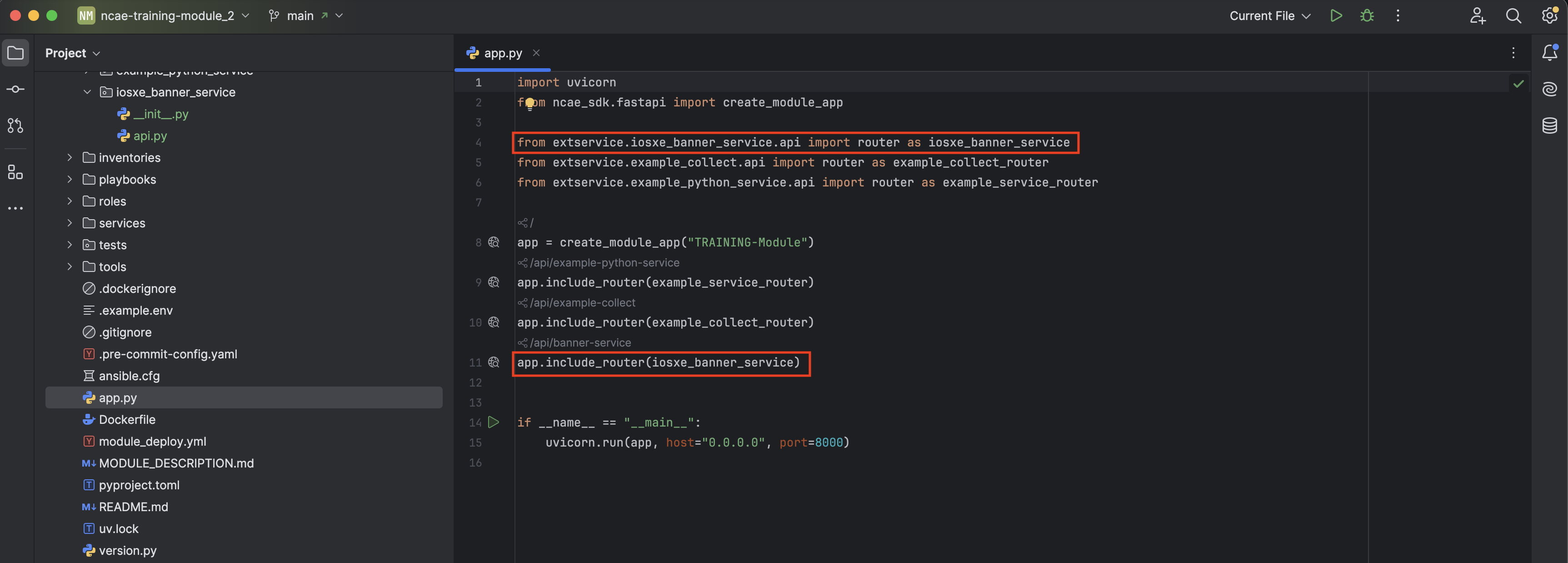
import uvicorn
from ncae_sdk.fastapi import create_module_app

from extservice.example_collect.api import router as example_collect_router
from extservice.example_python_service.api import router as example_service_router
from extservice.iosxe_banner_service.api import router as iosxe_banner_service

app = create_module_app("TRAINING-Module")
app.include_router(example_service_router)
app.include_router(example_collect_router)
app.include_router(iosxe_banner_service)


if __name__ == "__main__":
    uvicorn.run(app, host="0.0.0.0", port=8000)
For connecting to the IOSXE Devices we are using a very popular library called netmiko (see the api.py file above). This new library needs to be installed! There are different ways to do this. In this case we manually add the library as dependency in the pyproject.toml and update it via uv sync command.
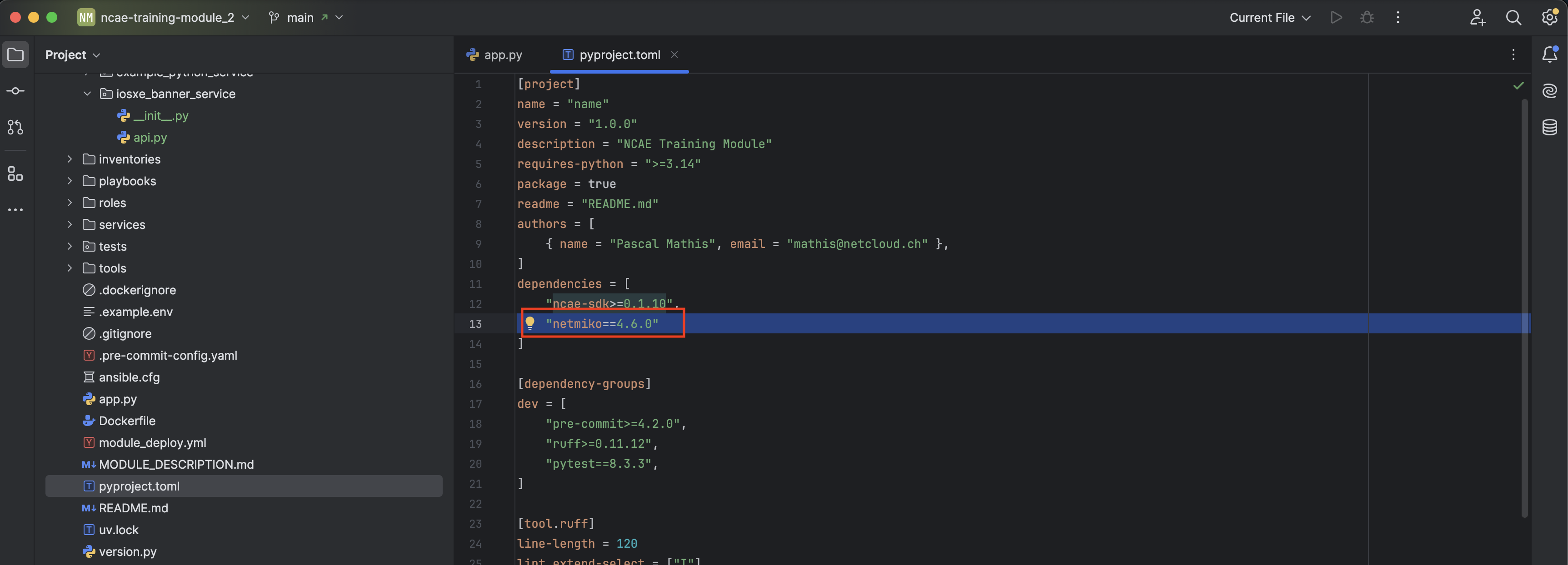
Add on a new line in “dependencies”, and paste
"netmiko==4.6.0". Right-click the filepyproject.tomland runuv sync.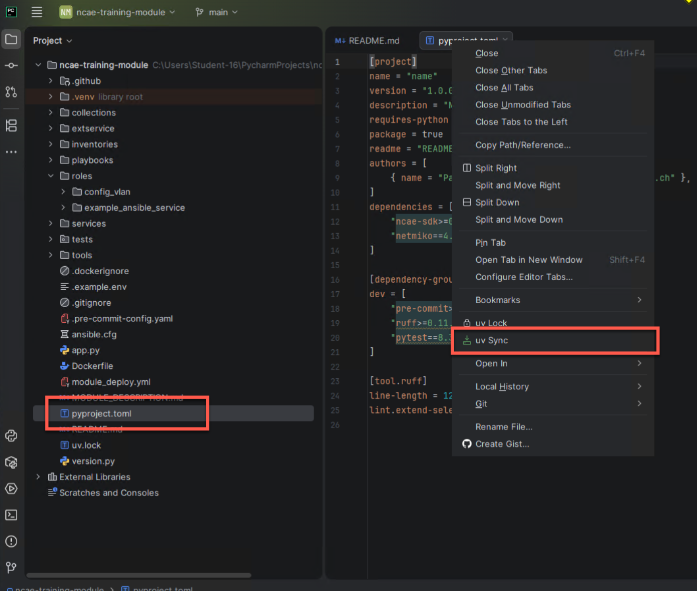
This is not shown:
uvalso provides a shortcut for people working in the terminal:uv add netmiko. This adds the dependency topyproject.toml, runsuv syncand updatesuv.lockin one step.As this is a bit of work
uvprovides a shortcut:uv add netmiko. This adds the dependency topyproject.tomlanduv.lockin one step.Add the new Service to the module_deploy.yml in order to get it installed during module installation process.
Add the new Service to the Module Installation
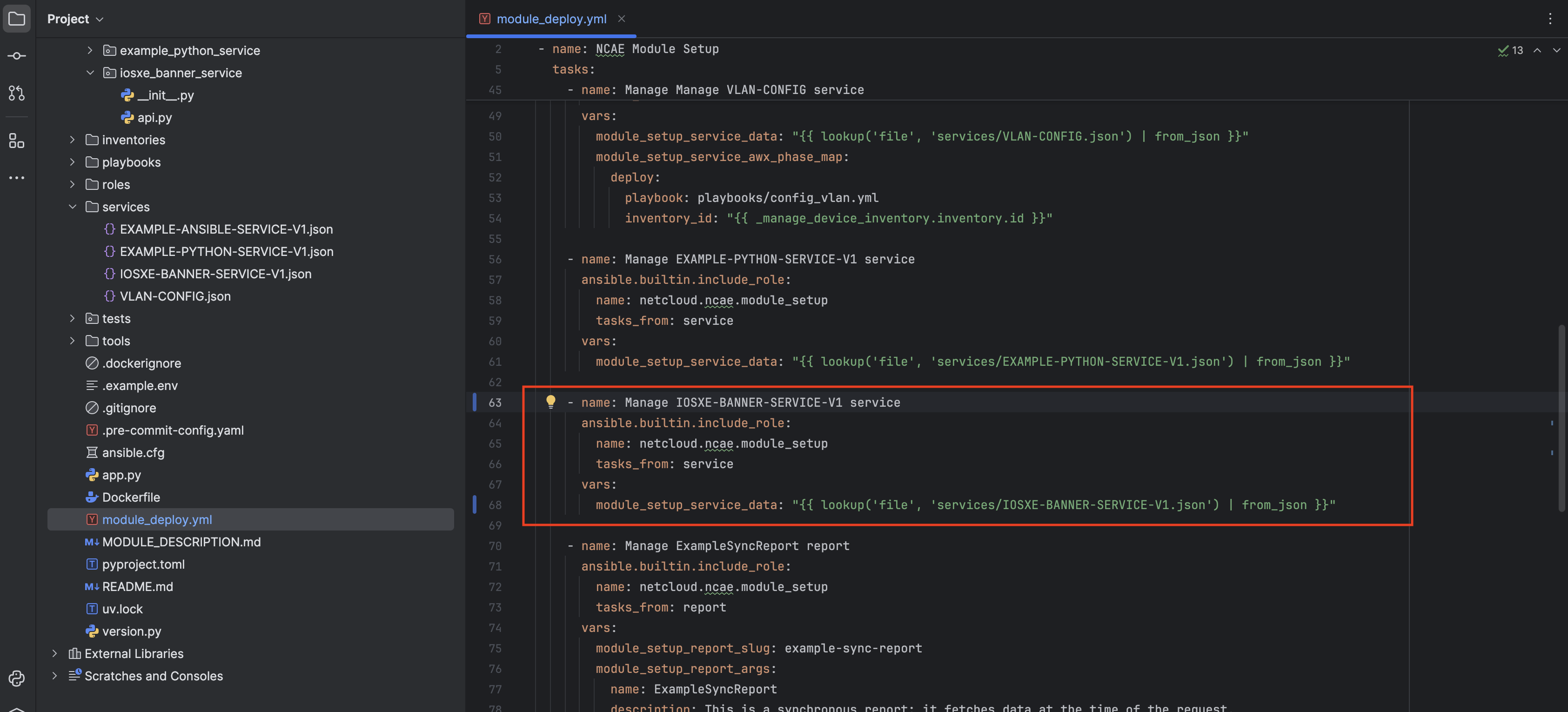
    - name: Manage IOSXE-BANNER-SERVICE-V1 service
      ansible.builtin.include_role:
        name: netcloud.ncae.module_setup
        tasks_from: service
      vars:
        module_setup_service_data: "{{ lookup('file', 'services/IOSXE-BANNER-SERVICE-V1.json') | from_json }}"
Summary
- A new service was created on the frontend, the structure was exported (both Service and Phase data)
- This structure was added to the Module, as a new Service
- The Python application was extended to support the new Phase API calls
Update the module
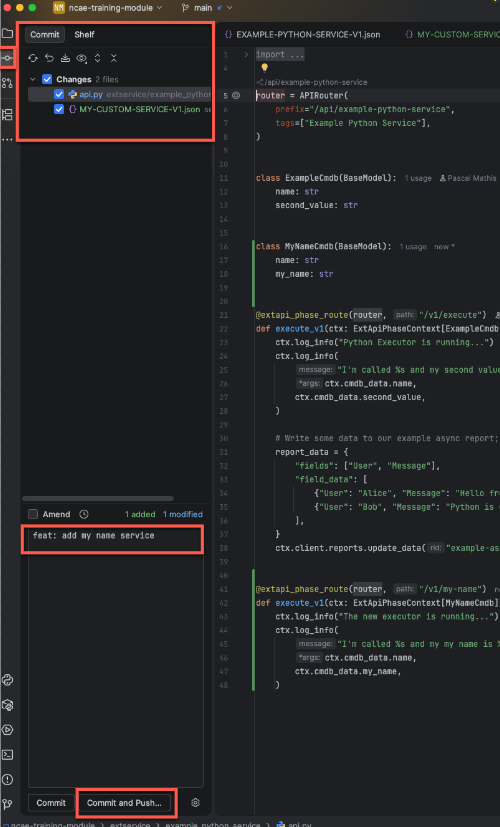
Repeat the steps from task 4):
- Commit the changes (
Git > Commitin the menu) - Make sure that all new/changed files are checked, and add a commit message
- Push it to GitHub, and wait until the pipeline is ready
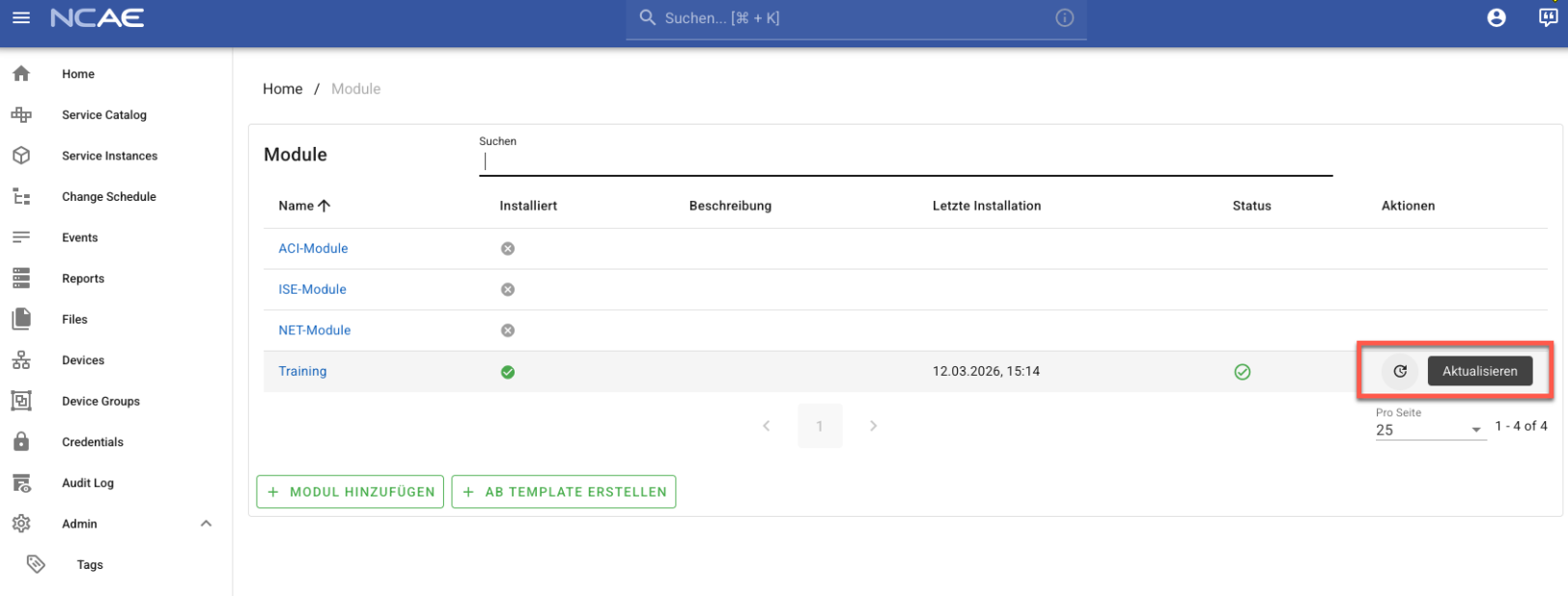
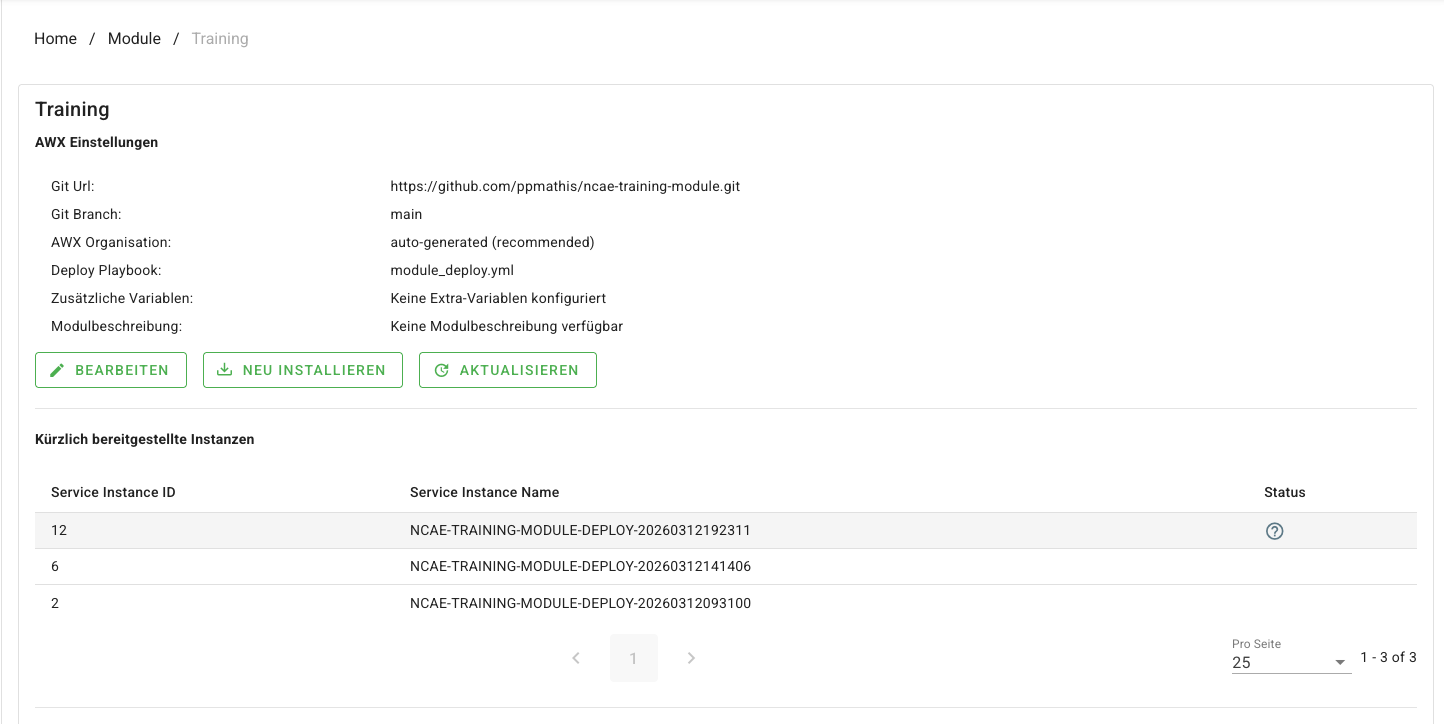
- Switch to the Browser, and “update” the Module in NCAE
- Wait until the “update” service is successfully deployed
Update the Container on the NCAE VM
The Container Running on Your NCAE VM is still the old one!
Make sure the Github Pipeline went through without an Error. You get also an email if there was an error.
Login to Your VM via SSH like in Task 3 and open the Local Shell.
Make sure You have root permissions
sudo -iRun the Command
kubectl -n ncae-module rollout restart deployment/ncae-extapi-training-server && kubectl -n ncae-module rollout status deployment/ncae-extapi-training-serverinorder to pull the new Image and restart the container:[root@ncae-training-X ~]# kubectl -n ncae-module rollout restart deployment/ncae-extapi-training-server deployment.apps/ncae-extapi-training-server restarted [root@ncae-training-X ~]# kubectl -n ncae-module rollout status deployment/ncae-extapi-training-server Waiting for deployment "ncae-extapi-training-server" rollout to finish: 1 old replicas are pending termination... Waiting for deployment "ncae-extapi-training-server" rollout to finish: 1 old replicas are pending termination... deployment "ncae-extapi-training-server" successfully rolled out
Check out the new service!
On the service list, the new Service is on display.
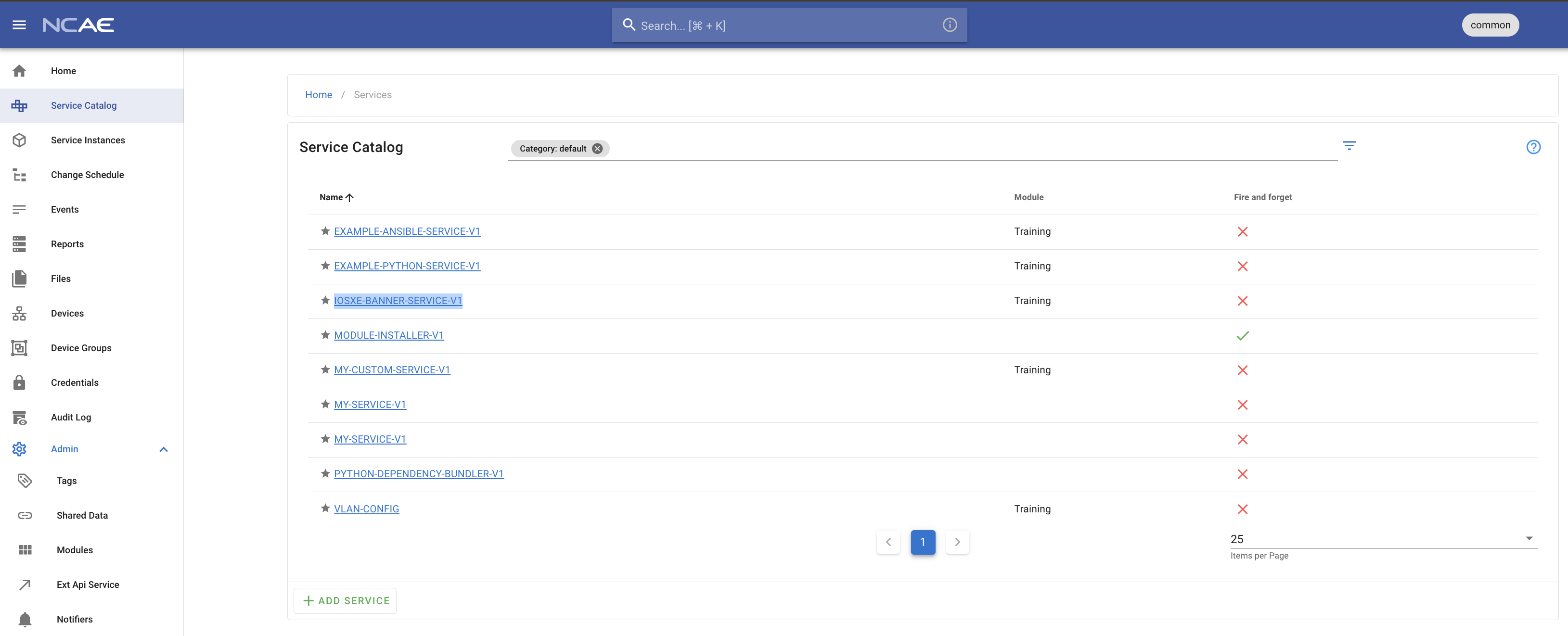
Fill it in and assert the deploy logs!
Update the Service
When selecting an existing Service, its data can be edited by clicking on the edit button on the service detail page.
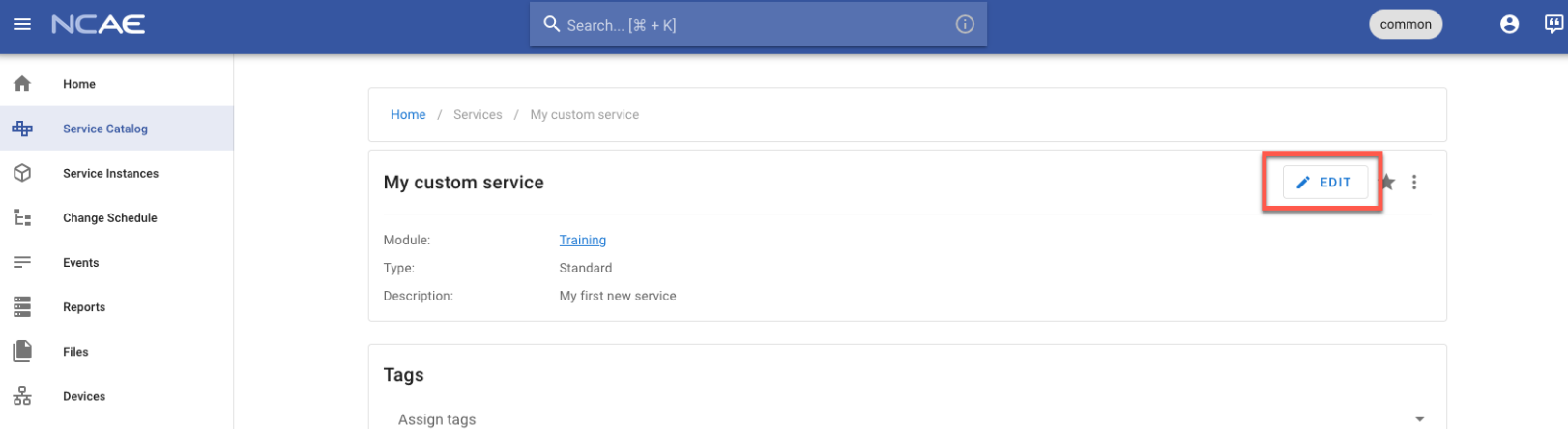
From there, it works in the exact same way as described above.
One thing to keep in mind is that changes on existing fields must be “backwards compatible”. Reasoning: your Service Instance data may be built with an older version of the Service.
As an example, do not remove values from select fields and always add defaults when adding required fields. Else, editing existing Service Instances may be prevented by the Core.
Summary
- The
servicesfolder contains the structure (Services, Phases) - The
Dockerfilecontains the module logic. It is served as python application inapp.py - The logic is referenced by the Phases as API endpoints.